

Overview
In the event that things go wrong with a deployment, Aptible makes it easy to restore an App to a previous deployment. If there’s a failure in the underlying infrastructure, Aptible automatically restores your App to its last known good state. If you want to roll back on your own, for example because the last deployment introduced a bug, you can instantly initiate a rollback right from the Aptible Dashboard. There’s nogit push, aptible deploy, or re-run of a CD run (for example, via GitHub Actions) required.
There are two types of rollbacks:
- Automatic: Aptible detects a failure during a deployment operation, including failures in the underlying infrastructure (for example, an EC2 instance failing), and automatically restores your App to its last known good state.
- Instant: you pick a previous successful deployment from the Dashboard and Aptible redeploys that deployment’s image.
Automatic Rollbacks
Aptible detects a failure during a deployment operation, including failures in the underlying infrastructure (for example, an EC2 instance failing), and automatically restores your App to its last known good state. Unlike an instant rollback, an automatic rollback does not create a new deployment operation. Aptible continues to use the initial deployment operation and displays related messaging in the operation logs. See Operation Rollbacks.Instant Rollbacks
Like automatic rollbacks, an instant rollback releases the exact image from the deployment you selected, so the code that runs is identical to the code that ran then. However, unlike an automatic rollback, an instant rollback has more consideration with regard to data.Rollback lifecycle
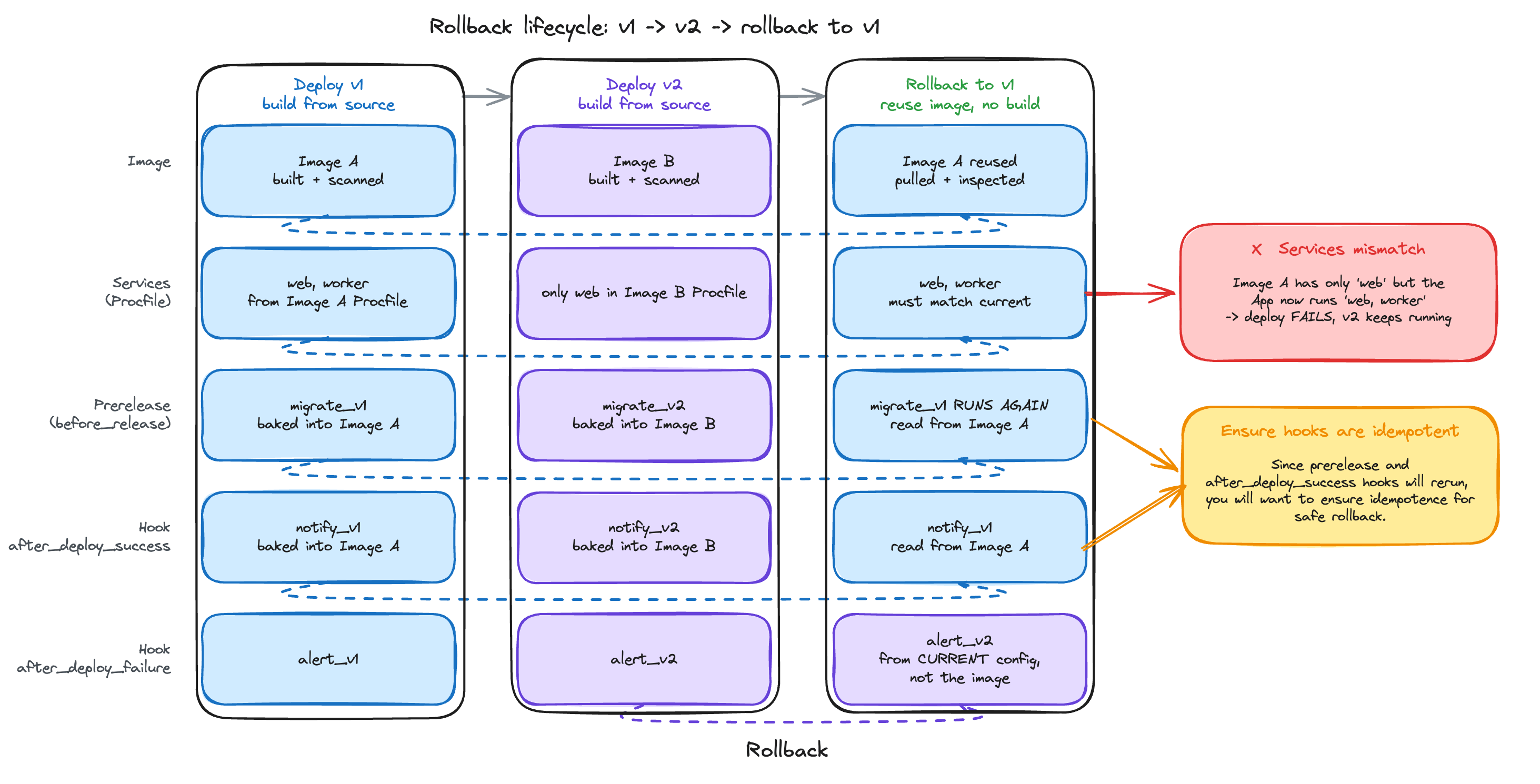
Rolling back to v1 reuses v1's image and everything baked into it. Only the failure hook comes from your current configuration.
What comes from the old image
An image with no
.aptible.yml has no prerelease commands and no success hook, and Aptible does not fall back to your current ones. after_deploy_failure is the exception: a new failure hook only takes effect after a deploy succeeds, so it comes from your current configuration.
Restoring environment variables
You can optionally restore the Configuration from the deployment you’re rolling back to.APTIBLE_DOCKER_IMAGE is never changed, because the rollback already pins the image.
When rollback isn’t available
- The deployment didn’t succeed, or has no image on record — only successful deployments with an image can be rolled back to.
- The image’s processes no longer match your Services — Aptible compares them first and fails before anything changes. An image defining only
webwon’t roll back onto an App now runningwebandworker. Deploy from source instead, so yourProcfiledefines the Services. - The image can’t be pulled or inspected — the rollback fails and your App keeps running.
Rolling back from the Dashboard
- Choose Rollback — on your App’s overview, in the Last Deployment panel.
- Pick a deployment to restore. The most recent successful deployments should be listed; See more expands the list with additional recent deployments.
- Decide whether to also restore environment variables.
- Choose Continue to review your selection, then Rollback to start the deploy and follow its logs.