
Overview
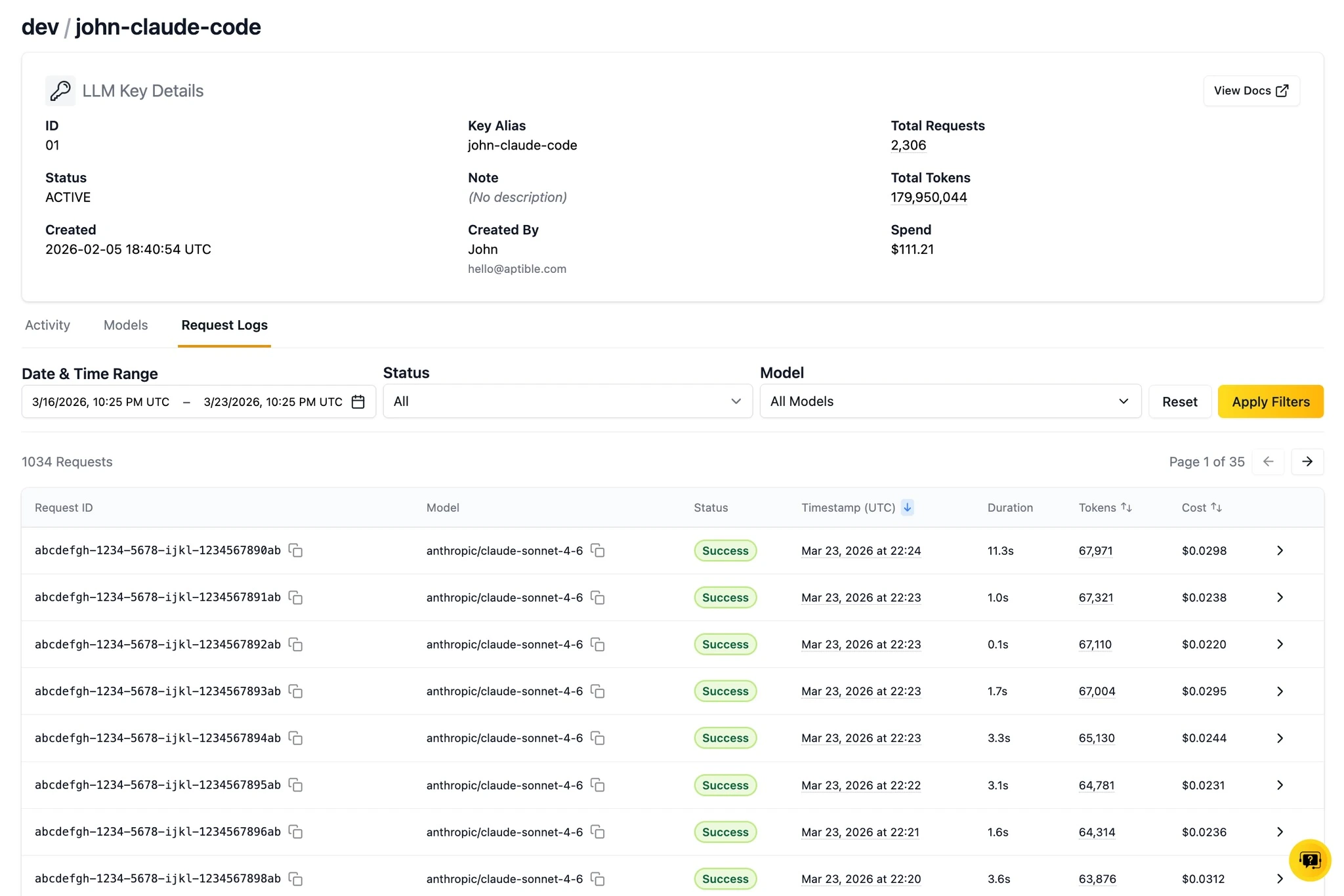
The following guide is designed to help you create your first LLM key on Aptible. The Aptible AI Gateway is a single API to access Anthropic, OpenAI, and Amazon Bedrock, with security and compliance guardrails built in (e.g., encryption, audit logging), and an easy-to-use interface to manage keys, control model access, and use LLMs securely. LLM keys are how you authenticate requests to the AI Gateway, a managed proxy that gives you secure, auditable access to leading AI model providers without needing to manage provider credentials directly in your apps. For a full overview of the AI Gateway, see the AI Gateway documentation.Create an LLM Key
- New Customers
1
Start your trial to try for free
Sign up for or sign in to your Aptible account. Then navigate to the AI Gateway Dashboard to activate your trial.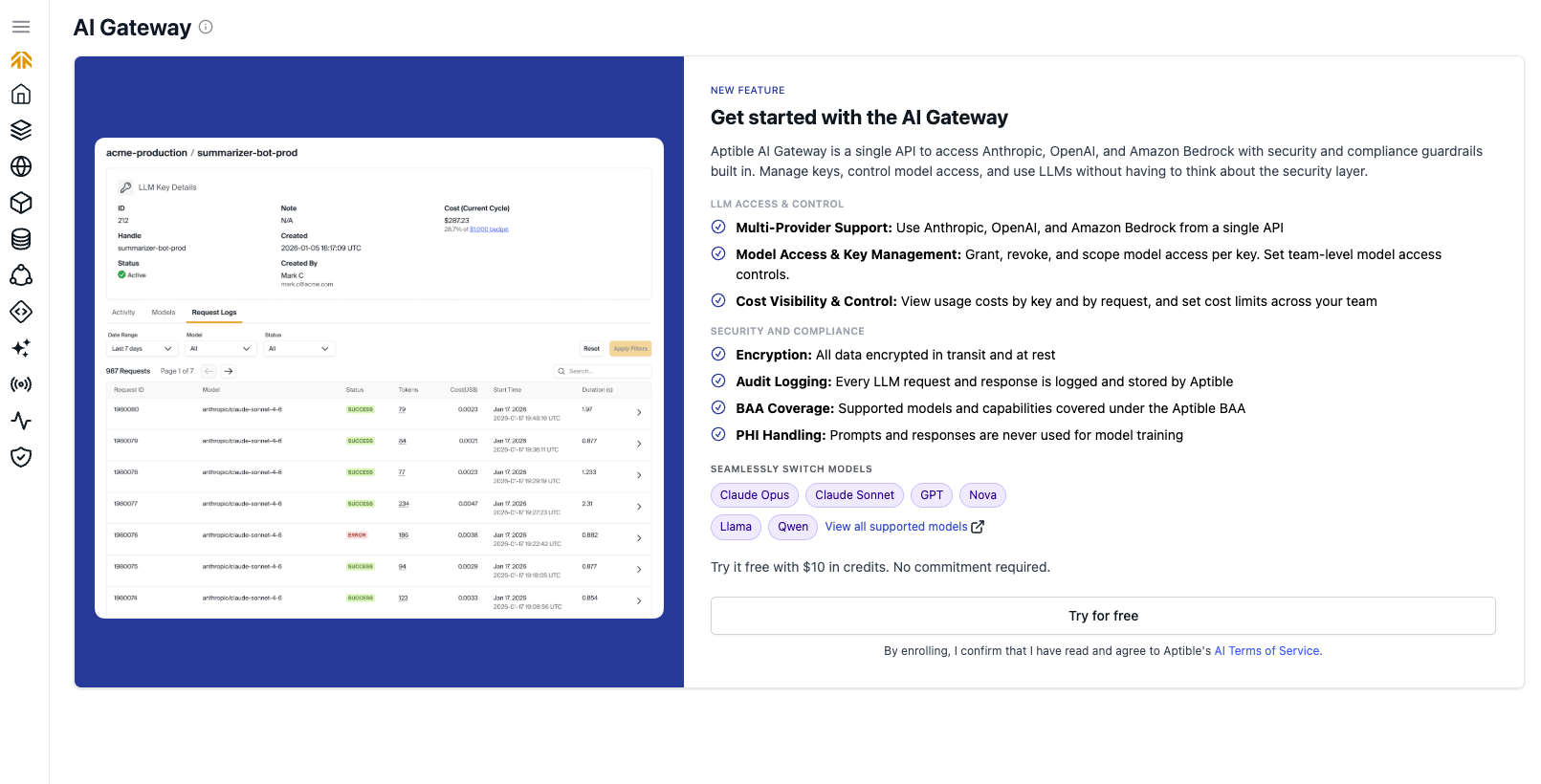
2
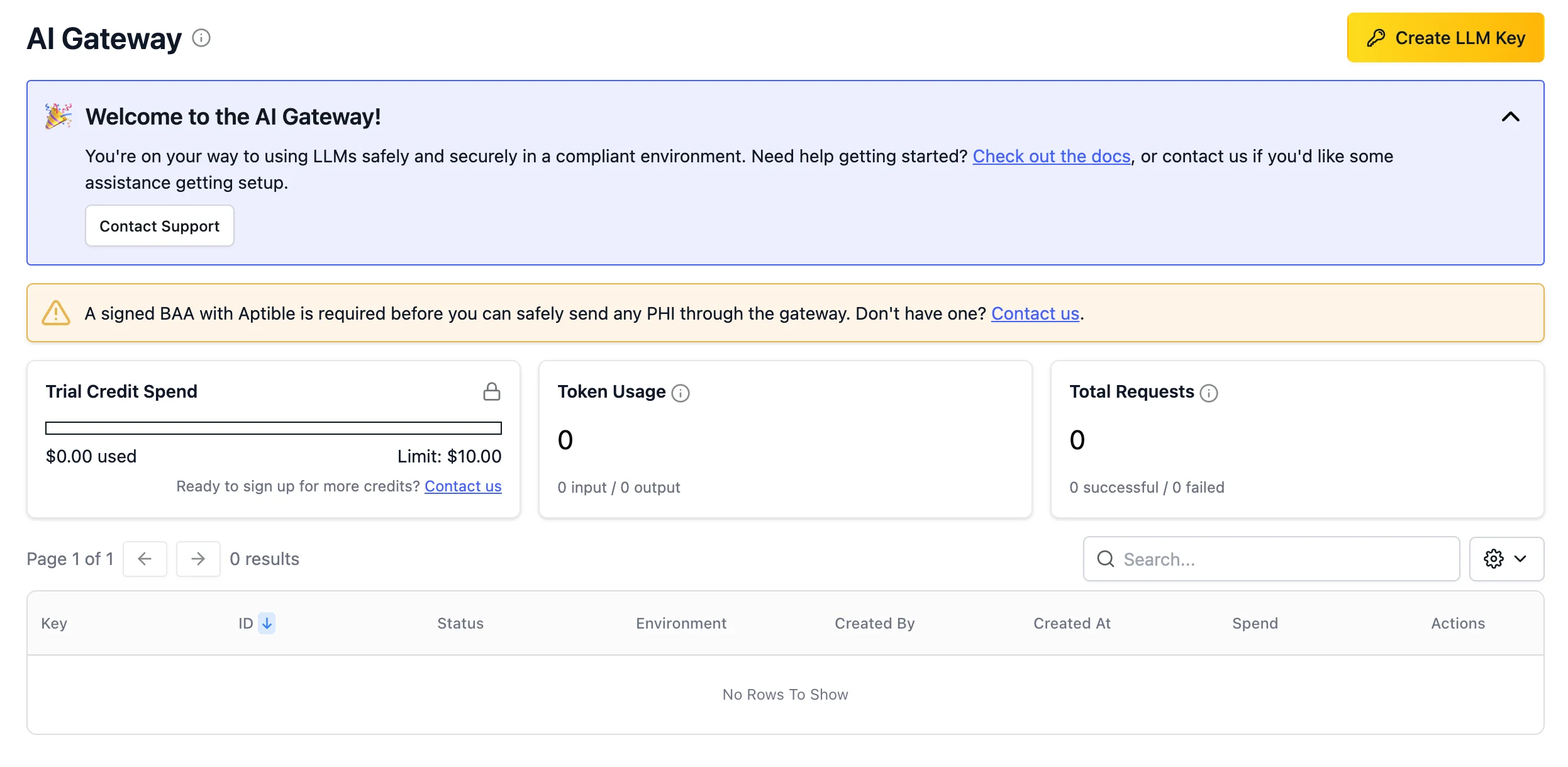
Create an LLM key
Click Create LLM Key on the AI Gateway Dashboard.You’ll start by creating an Environment, which is how keys and resources are organized in Aptible. This will help you apply model access controls and other permissions to your keys.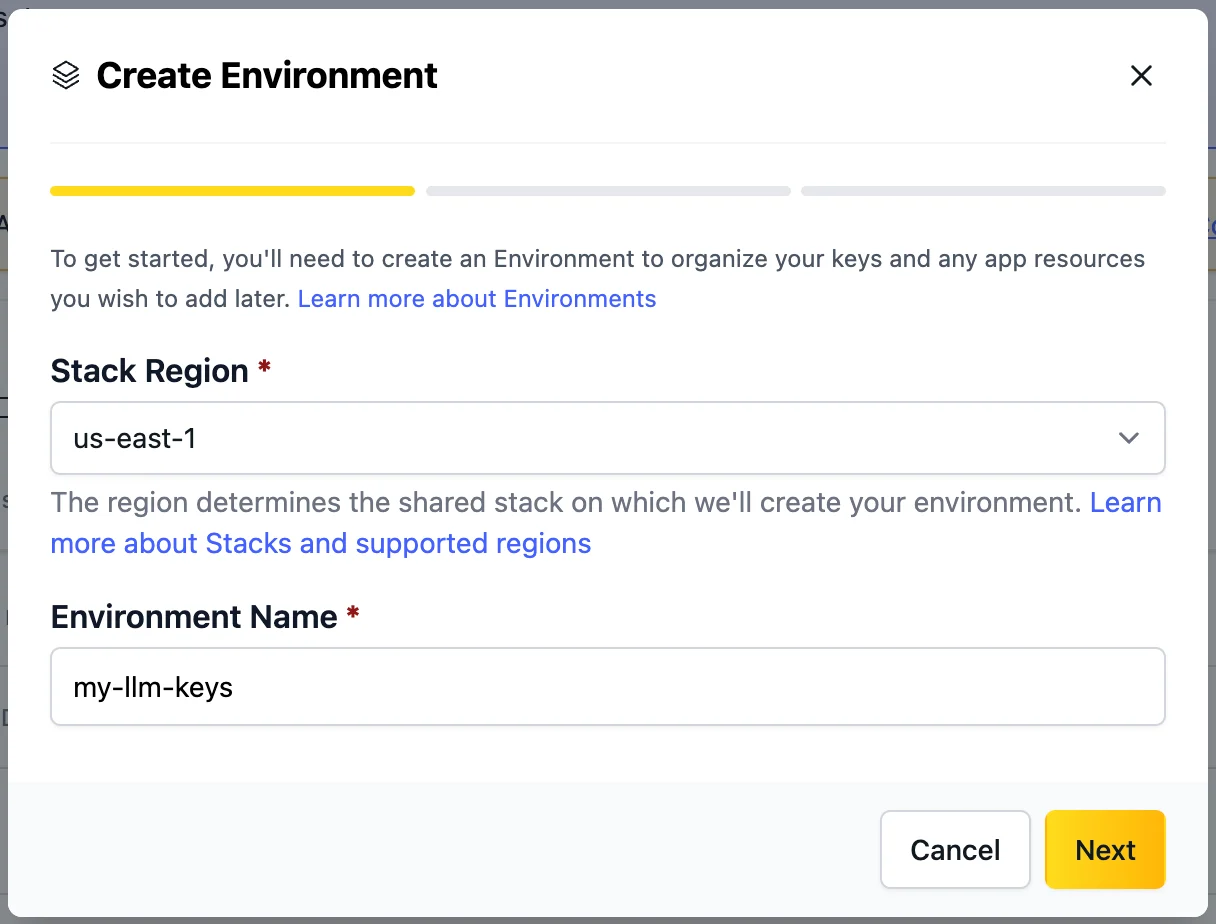
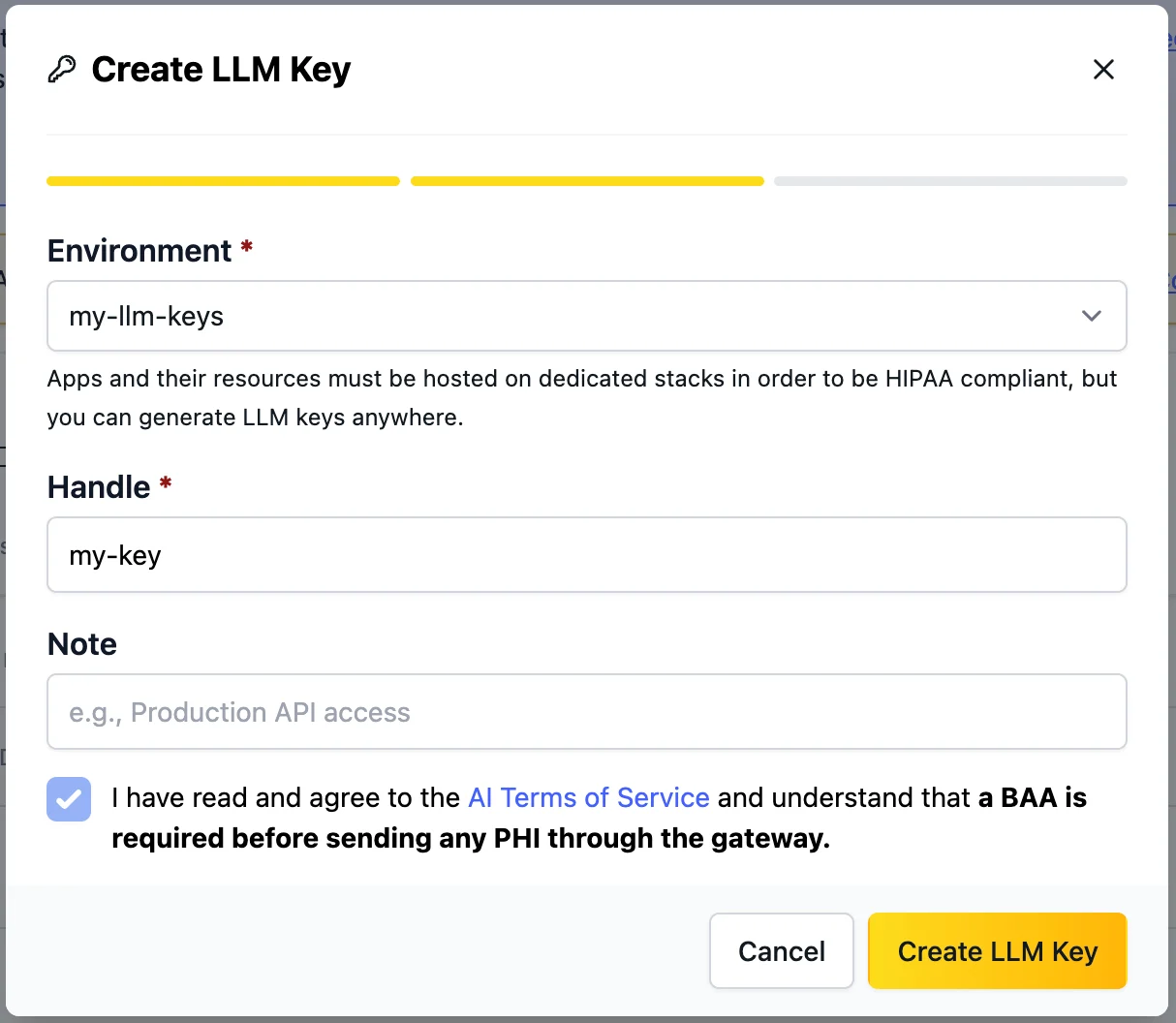
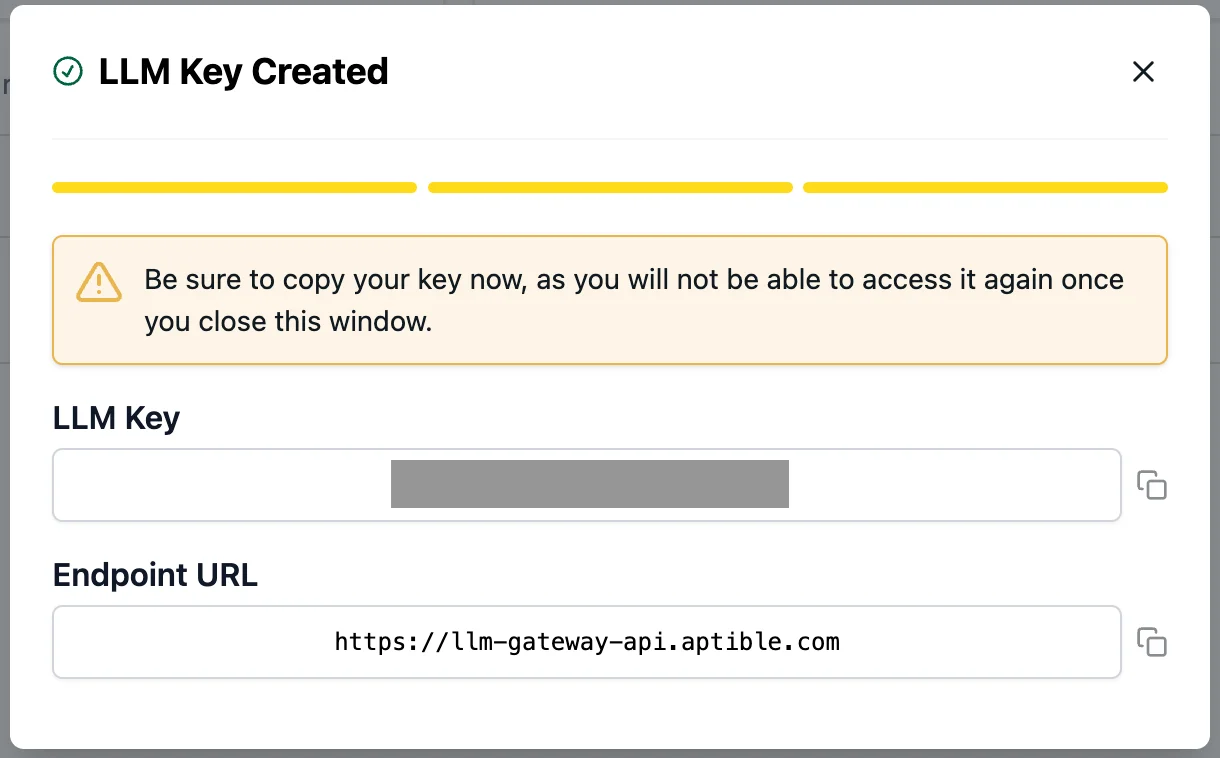
3
Connect to the gateway
You will use this single endpoint to connect to the gateway for all models:Specific configuration requirements will vary by AI tool. Here are instructions for setting up Claude Desktop to use your key:
- Enable Developer Mode: Open Claude Desktop and go to Help > Troubleshooting > Enable Developer Mode.
- Access Inference Settings: A new “Developer” menu will appear after Claude restarts. Click Developer > Configure third-party inference.
- Enter the Gateway base URL: Select “Gateway” as your connection type, and use https://llm-gateway-api.aptible.com.
- Set your Gateway API key: paste your Aptible LLM key here, and set the Gateway auth scheme to “bearer”.
- Save and Restart: Click Apply locally, then fully quit and restart Claude Desktop to load the new settings. You can also use LLM keys with any OpenAI-compatible client:
4
Start using your LLM Keys!
Once that is complete, you’re ready to start using your LLM Keys securely! All your LLM usage will be encrypted and logged for auditability.When you’re ready to upgrade to a paid AI Gateway plan, contact Aptible Support here or via the Aptible Dashboard. Note: this will require having a payment method on file.
5
Optionally, start using with PHI
To begin using the AI Gateway with PHI, you’ll need to upgrade to a paid plan and execute a BAA with Aptible. Contact Aptible Support here or via the Aptible Dashboard to continue.Once you have completed these steps, you’re ready to start processing PHI! Aptible will ensure your usage is encrypted, logged, and never stored for model training.
6
Optionally, configure model access
You can see the available models in the key details page; copy your desired model string and use it wherever you use your LLM key. This view shows which models your key has access to.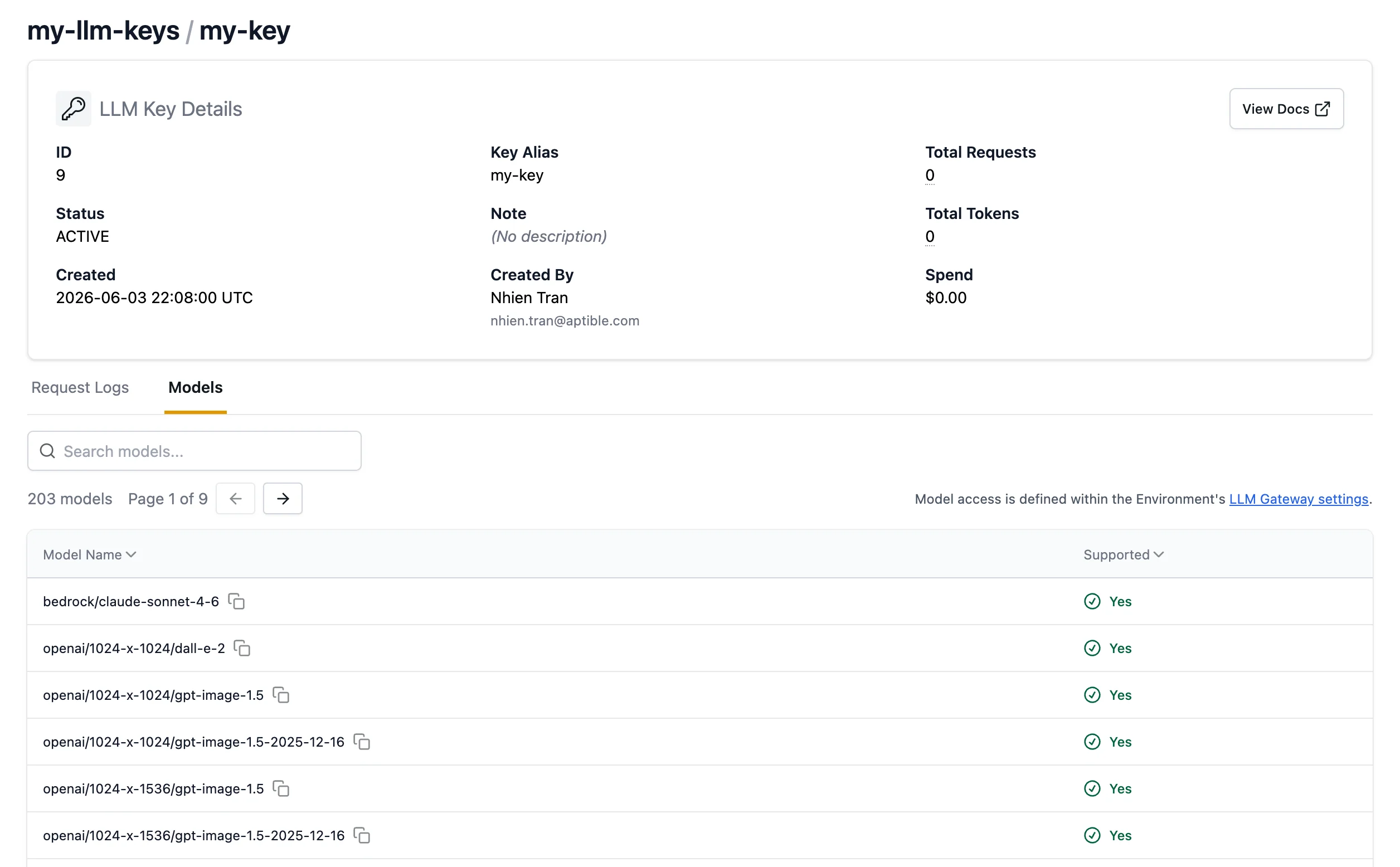
7
Review costs and optionally, configure limits
View per-key costs for the current billing period, request history for the past week, and token consumption per request.