
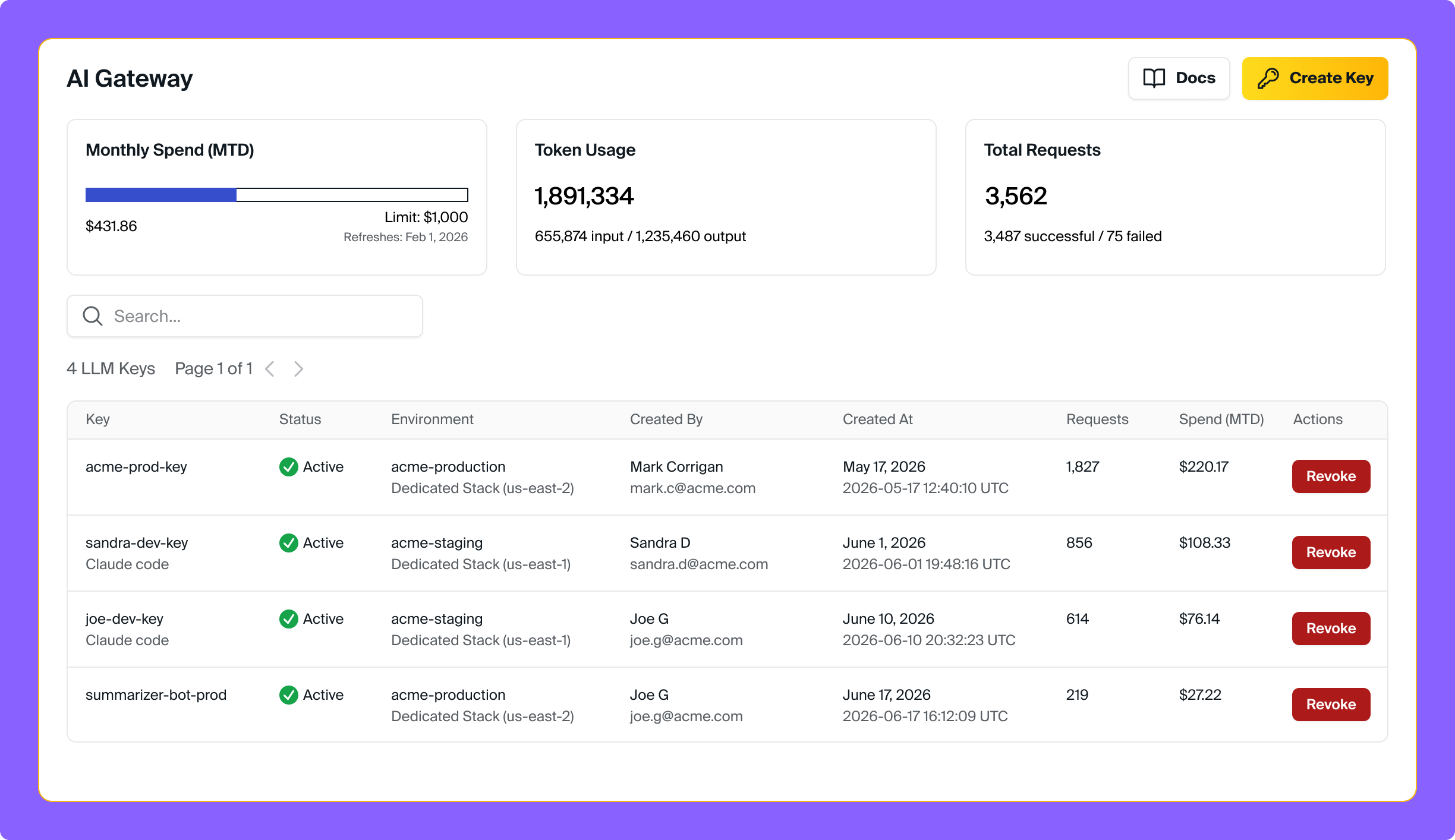
Aptible’s AI Gateway lets you access LLMs from OpenAI, Anthropic, and Amazon Bedrock through a single, compliant API. The gateway is designed for regulated industries; it provides HIPAA compliance with BAA coverage, automatic audit logging, and encryption, so your team can build AI-powered features without managing compliance infrastructure yourself.

Getting Started

1

Sign up for the beta

Sign up for (or sign in to) your Aptible account. Once you are signed in, you can join the AI Gateway beta at https://app.aptible.com/llm-keys.
Screenshot 2026 06 03 At 12 23 33 PM
You’ll receive $10 of LLM credits to get you started, which can be used with any models that we support. If you want to upgrade to a paid plan for more credits, contact Aptible Support.
Screenshot 2026 06 03 At 12 23 46 PM
2

Create an LLM key

Click Create LLM Key on the AI Gateway page.You’ll start by creating an Environment, which is how keys and resources are organized in Aptible. This will help you apply model access controls and other permissions to your keys.
Screenshot 2026 06 03 At 2 57 33 PM
Then, create your key. Give it a descriptive name so you can identify its usage later when reviewing costs and request history. Note that you can’t send PHI through the gateway until you have a BAA with Aptible; let us know if you’d like to set one up.
Screenshot 2026 06 03 At 3 02 30 PM
Make sure to copy the key on the next screen — you won’t be able to see the key again once you close this window.
Screenshot 2026 06 03 At 3 10 32 PM
3

Connect to the gateway

First, select the model you want to use. You can see the available models in the key details page; copy your desired model string and use it wherever you use your LLM key.
Screenshot 2026 06 03 At 4 09 26 PM
You will use this single endpoint to connect to the gateway for all models:
https://llm-gateway-api.aptible.com
Specific configuration requirements will vary by AI tool. Here are instructions for setting up Claude Desktop to use your key:
  • Enable Developer Mode: Open Claude Desktop and go to Help > Troubleshooting > Enable Developer Mode.
  • Access Inference Settings: A new “Developer” menu will appear after Claude restarts. Click Developer > Configure third-party inference.
  • Enter the Gateway base URL: Select “Gateway” as your connection type, and use https://llm-gateway-api.aptible.com.
  • Set your Gateway API key: paste your Aptible LLM key here, and set the Gateway auth scheme to “bearer”.
  • Save and Restart: Click Apply locally, then fully quit and restart Claude Desktop to load the new settings.
You can also use LLM keys with any OpenAI-compatible client:
import openai

client = openai.OpenAI(
    api_key="YOUR_AI_GATEWAY_KEY",
    base_url="https://llm-gateway-api.aptible.com",
)

response = client.chat.completions.create(
    model="anthropic/claude-sonnet-4-20250514",
    messages=[
        {"role": "user", "content": "Hello world!"}
    ],
)

print(response)
4

See and manage key usage in the Aptible UI

Once your key is in use, you can monitor its activity from the key details page in the Aptible dashboard. View per-key costs for the current billing period, request history for the past week, and token consumption per request.
Llm Key Details

Supported Models

The AI Gateway supports models from three providers:
ProviderExample ModelsPrefix
AnthropicClaude Opus, Claude Sonnetbedrock/anthropic
OpenAIGPT-5.2openai/
Amazon BedrockQwen, Llama, and other Bedrock-hosted modelsbedrock/
Model availability may change during the beta. Check the LLM key details page for the current list of available models.

Features

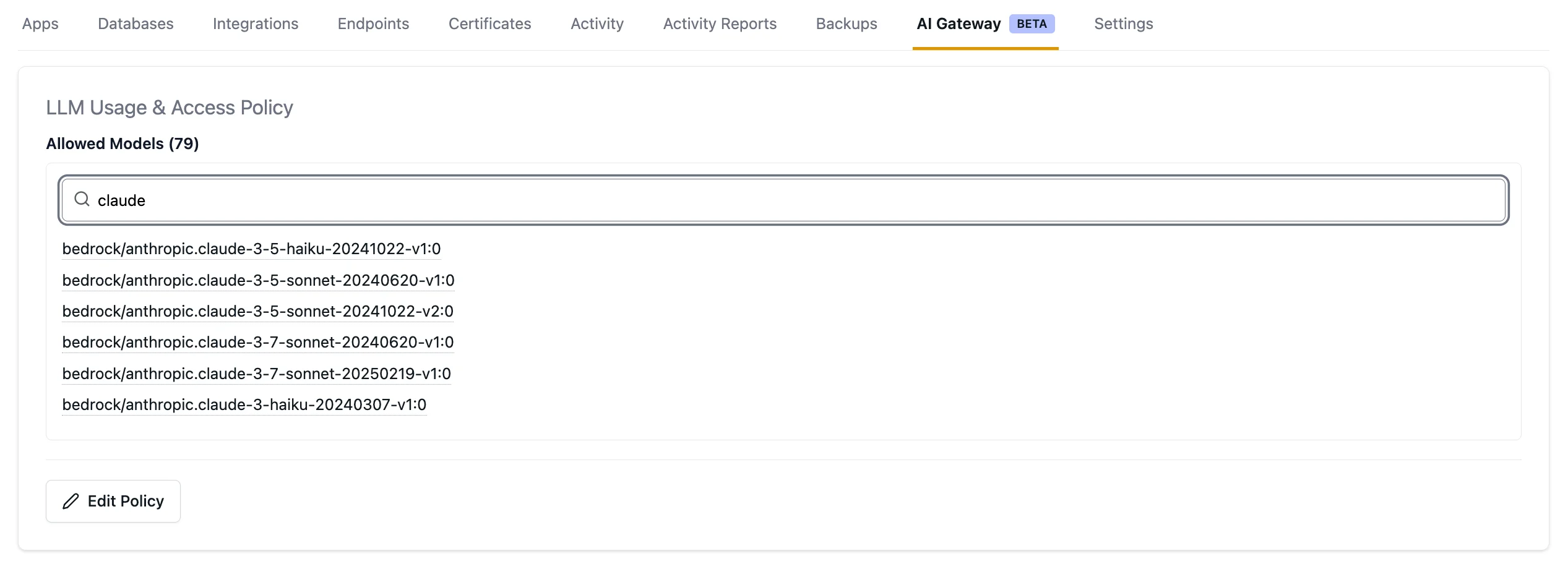
Model Access Policies

Control which models your team can use by configuring model access policies at the environment level. Policies apply to all LLM keys within an environment, giving you centralized control over model usage across your applications and developers.
Screenshot 2026 06 03 At 3 48 23 PM

Cost Control and Visibility

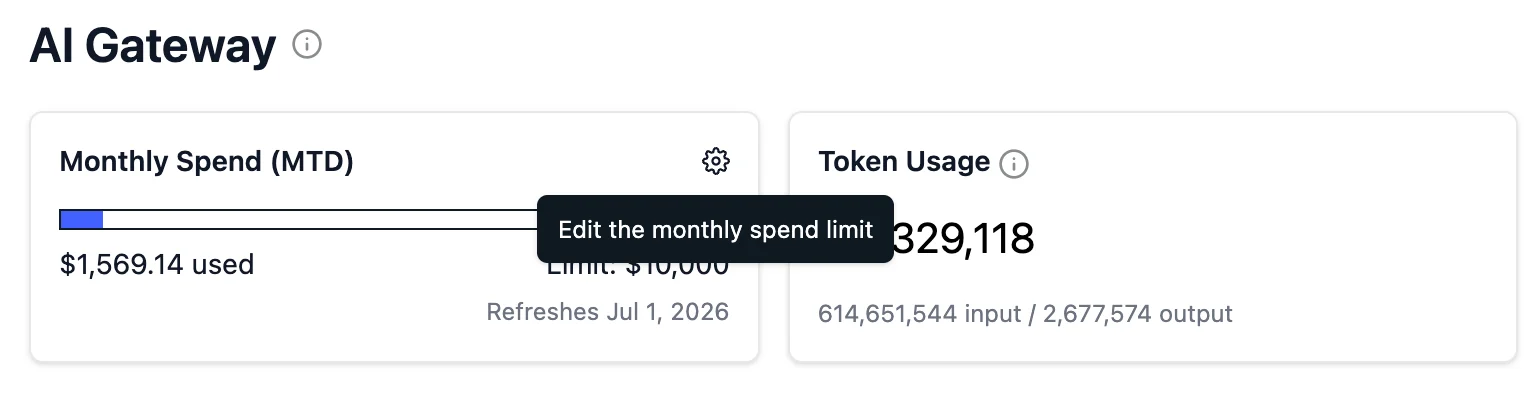
Set your organization-wide usage limit by clicking the gear icon in the monthly spend tile on the AI Gateway page. You can set the limit to anything between $1 and $10,000; reach out to Aptible Support if you want to change the max limit.
Edit Monthly Spend Limit
Track your LLM spend across your organization using the AI Gateway UI:
  • Organization-level costs — See total AI Gateway spend across all keys and environments for the current billing period.
    Screenshot 2026 06 03 At 4 16 11 PM
  • Environment-level costs — View spend by environment to understand which teams or applications are driving usage.
    Screenshot 2026 06 03 At 4 18 26 PM
  • Per-key costs — View usage costs for each individual LLM key during the current billing period to identify which keys generate the most activity and find opportunities for cost optimization.
    Key Cost

Request History

View request activity for each key over the past week. The key details page shows token consumption and associated costs for each request, giving you visibility into how your keys are being used.
Screenshot 2026 06 03 At 4 28 38 PM

Request Logs

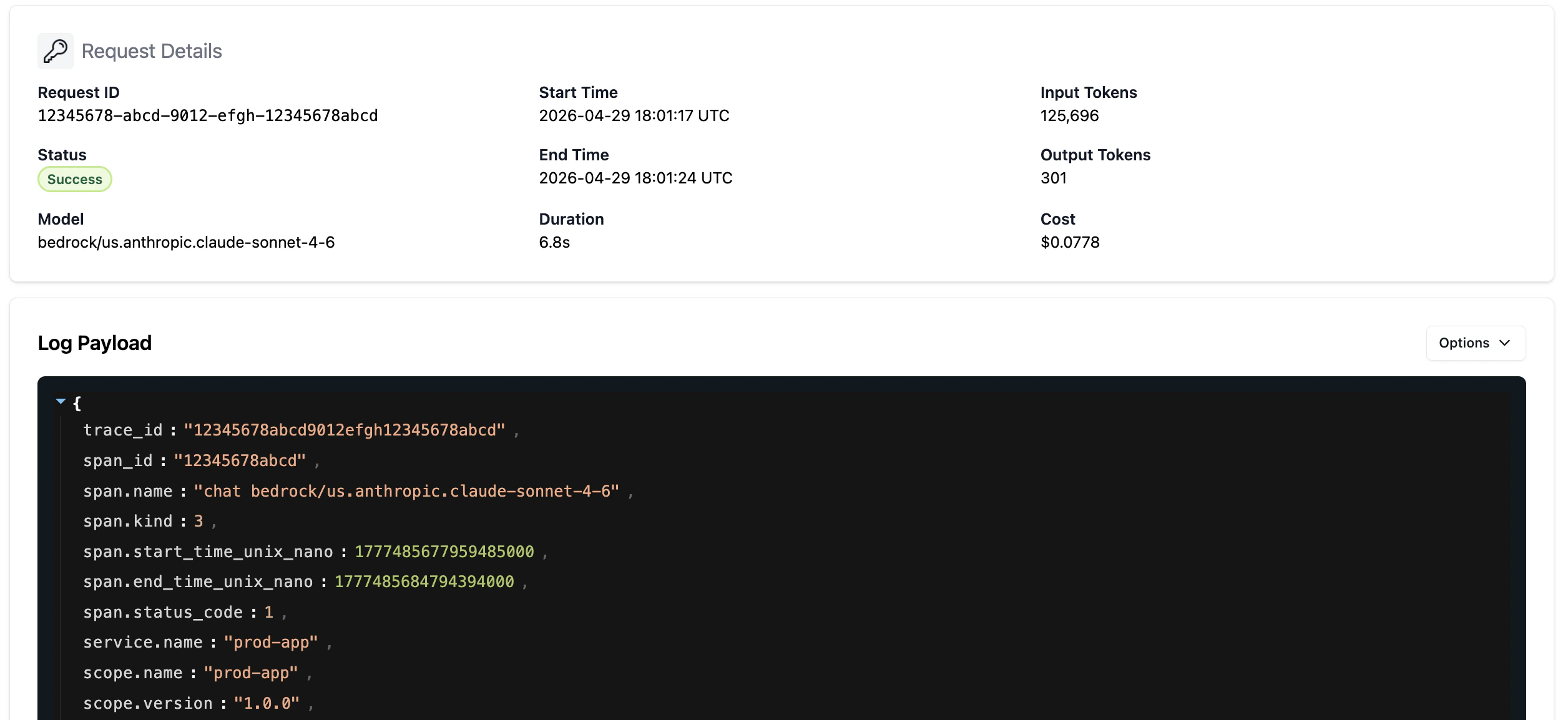
LLM requests and responses are available in the Aptible dashboard to help with prompt refinement and troubleshooting. For every request, you can see the full LLM request and response logs in the UI for 7 days. Click on the chevron in any request row to see the full request details.
Logs Ui

Trace Drains to Langfuse

See Langfuse integration

Compliance

The AI Gateway provides HIPAA compliance out of the box:
  • BAA coverage — Aptible’s BAA covers all models and capabilities accessed through the gateway.
  • Audit logging — All LLM calls are automatically logged for compliance and auditing purposes.
  • No PHI training — LLM providers are prohibited from retaining or using PHI for model training.
  • Encryption — All data is encrypted in transit and at rest.

Coming Soon

We’re actively building new capabilities for the AI Gateway:
  • Data residency — Deploy the AI Gateway in specific regions to meet local data residency and compliance requirements.

Support and Feedback

We’d love to hear from you as you use the AI Gateway beta. If you have questions, run into issues, or have feature requests, contact us.