

Overview
Aptible’s LLM Gateway shows LLM spend at every level of your organization, from total usage across all keys down to individual key activity. To prevent unexpected costs, set a global spending limit for your organization. You can also set lower limits on individual keys.Setting a Spending Limit
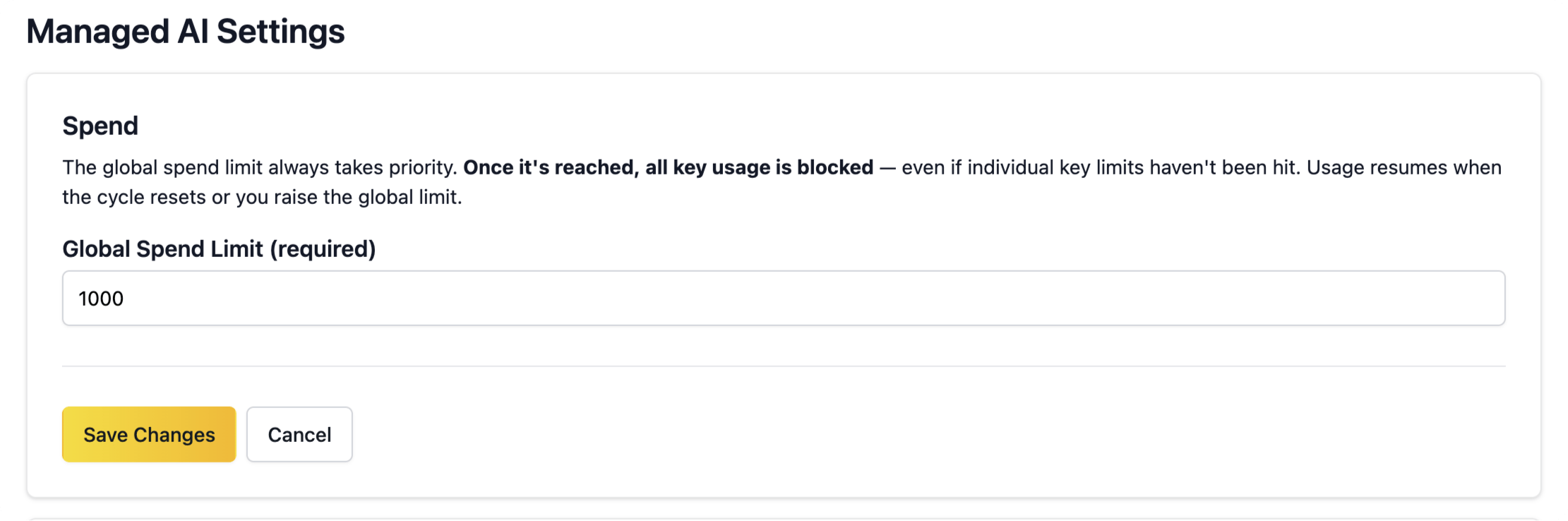
You can set an organization-wide monthly spending limit to cap your total LLM Gateway usage. To configure it, go to Settings > Managed AI and edit the Global Spend Limit. The limit can be set anywhere between $1 and $10,000. If you need a higher limit, contact Aptible Support.Changing the global spend limit requires the Account Owner role. Once the limit is reached, all key usage in your organization is blocked, even for keys that haven’t reached their own spend limit.
Setting a Per-Key Spending Limit
A per-key spending limit caps what a single key can spend each month. It keeps one application, agent, or teammate from using up your organization’s whole budget. A key without its own limit can spend up to the global spend limit. To set a limit on a new key, use the Monthly Spend Limit field in the Create LLM Gateway Key dialog. To change or remove the limit later, open the key from LLM Gateway and select the Settings tab. Enter a new amount, or clear the field to remove the key’s limit, and select Save Changes. A revoked key’s limit can’t be changed. Once a key reaches its limit, its requests are blocked until the next billing cycle or until you raise its limit. Other keys in your organization keep working. On the LLM Gateway key list, the Spend (MTD) column shows each limited key’s spend against its limit, with a progress bar. The bar changes color when a key has used 75% of its limit and again at 90%. To see each key’s limit as its own column, turn on the Spend Limit column from the table’s settings. A key’s limit can’t exceed the global spend limit. Lowering the global spend limit lowers every key limit above the new value to match it. Raising the global spend limit leaves key limits unchanged. If a new global spend limit would lower any active key’s limit, the Managed AI settings page shows a confirmation checkbox before you can save. The checkbox links to the affected keys on the key list. Select it to acknowledge the change, then save. Any member can set a limit on a key they create. Changing or removing a key’s limit later requires the Account Owner role, unless you created the key. See LLM Keys for the full permission rules.Tracking Spend
Organization-level
See total LLM Gateway spend across all keys in your organization for the current billing period from LLM Gateway.
Per-key
View usage costs for each individual LLM key during the current billing period to identify which keys generate the most activity and find opportunities for cost optimization.