

Overview
LLM Keys are API keys that authenticate requests to the Aptible LLM Gateway. Each key is scoped to your organization, so a single key gives you access to every model allowed by your organization’s Model Access Policy. You don’t need separate keys per environment, application, or provider.Creating a Key
Go to LLM Gateway and select Create Key. Enter a name (handle) for the key. To cap what the key can spend, also enter a spend limit. Leave it blank to let the key spend up to your organization’s global spend limit.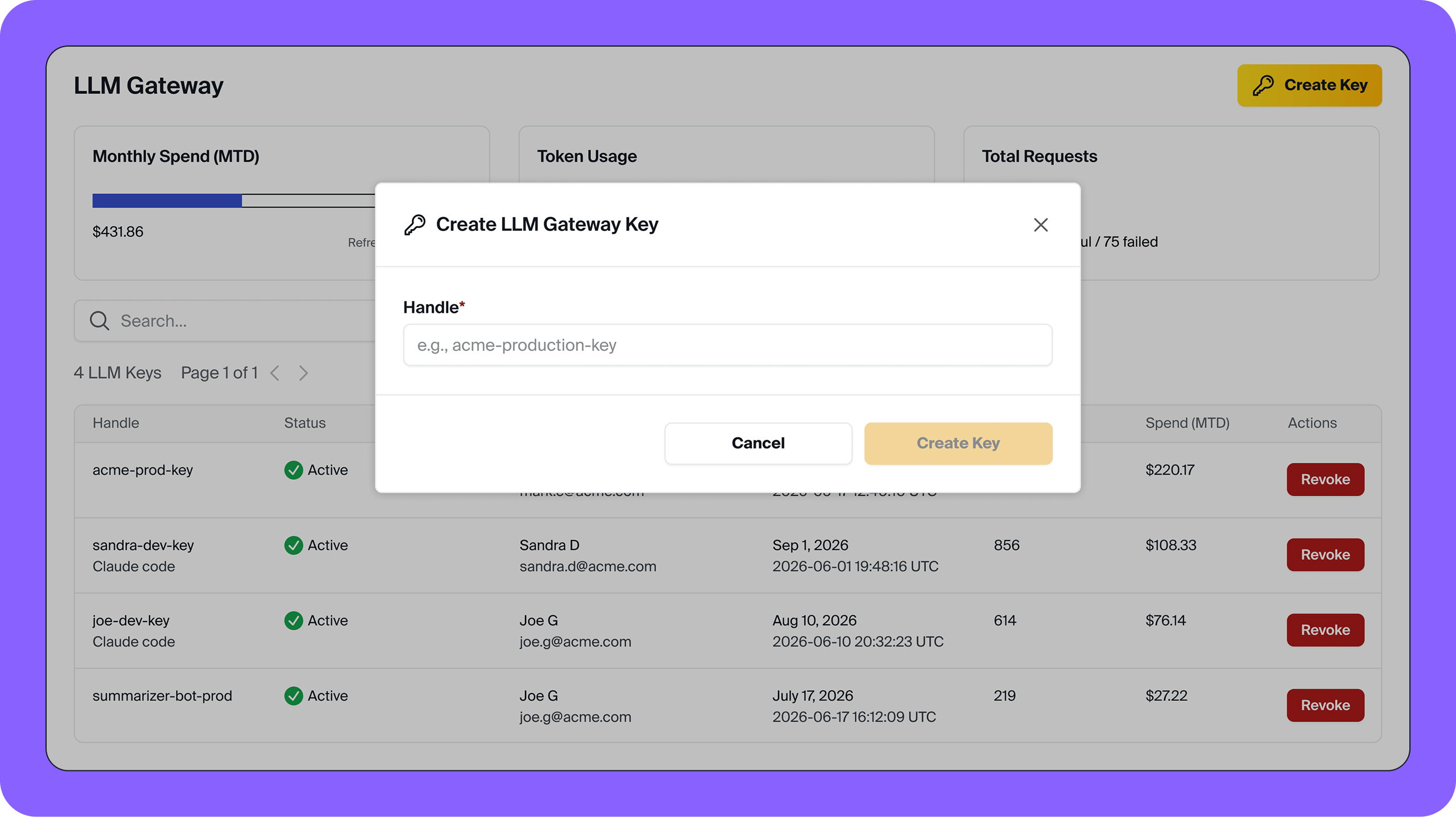
Claude Code
OpenAI-compatible SDKs
Anthropic-compatible SDKs
Managing Keys
Keys are managed from LLM Gateway in the Aptible dashboard. From the key list you can see each key’s name, status, current usage, and who created it. Select any key to view its details, including request history, token usage, and per-request costs.Editing a Key
To rename a key or change its spend limit, select the key from LLM Gateway and open its Settings tab. Edit the Handle or the spend limit, then select Save Changes. To remove the key’s spend limit, clear the field. Each key’s handle must be unique within your organization. Renaming a key doesn’t change its token, so applications that use the key keep working. A revoked key can’t be edited.Revoking a Key
To revoke a key, select Revoke next to it in the LLM Gateway key list. You can also open the key’s Settings tab, enter the key’s handle to confirm, and select Revoke Key. Revoking a key immediately invalidates it. Use this if a key is compromised or you need to permanently cut off access for a specific application or team. Any member can revoke a key they created themselves. Revoking a key created by someone else requires the Account Owner role. See Permissions below.Permissions
Any member of your organization can create an LLM Key and view every key’s metadata. Key creation and visibility aren’t restricted to account owners.The first time anyone in your organization creates a key, they will be required to accept a one-time notice about processing PHI through the gateway.
- Any member can revoke or edit a key they created themselves.
- Revoking or editing a key created by someone else requires the Account Owner role.